
By default, the calendar displays the current month, plus one additional full week from the next month. If there is a partial week from the next month, this is not counted towards the additional weeks.
You can configure Strive to display between 0-3 additional full weeks from the next month.
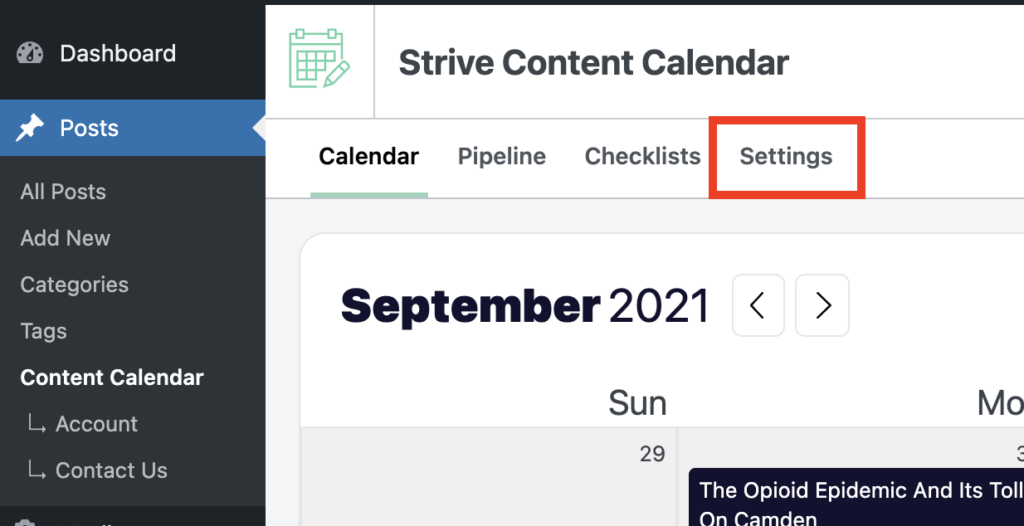
To change the number of additional weeks, start by clicking on the Settings tab.
In the settings page, locate the option called Number of weeks to display after the current month. Then select the number of weeks you want to show in your calendar.
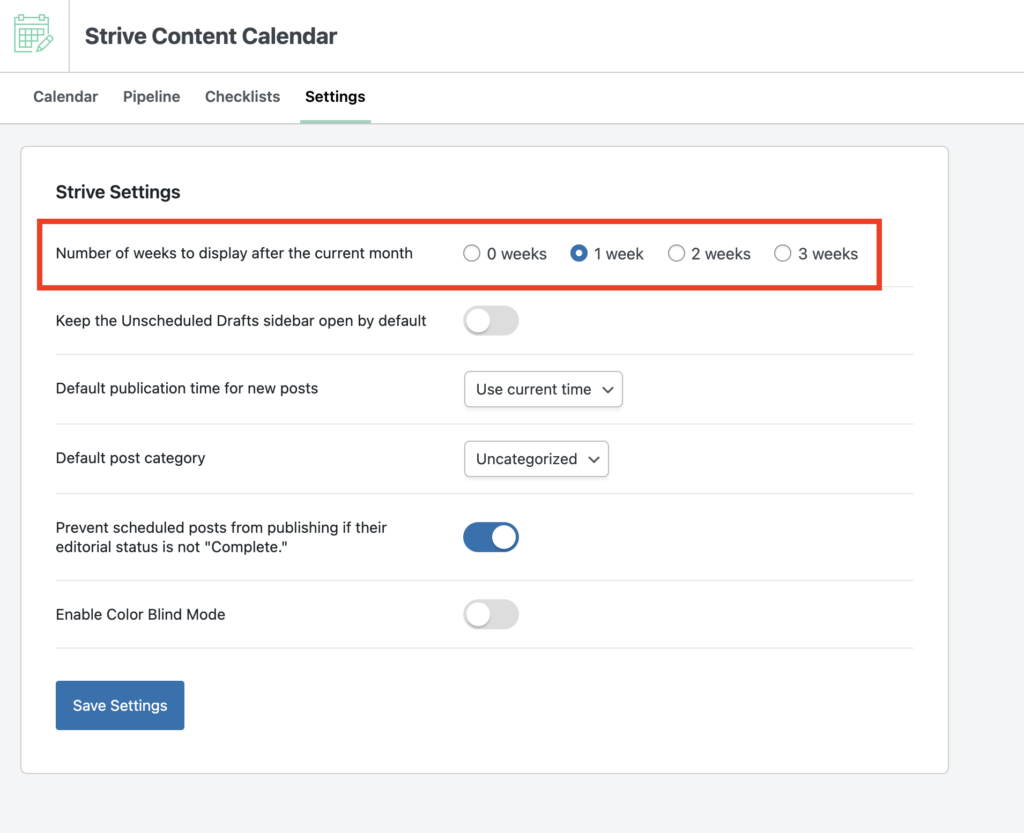
Once selected, click the Save Settings button at the bottom to save your changes.
Search
Search for
Categories
Related Tutorials
- Getting Started with the Content Calendar
- How to Add New Posts to the Calendar
- How to Reschedule Posts
- How to Edit Posts in the Calendar
- How to Unschedule a Post
- How to Display Post Categories in the Calendar
- How to Display Post Tags in the Calendar
- How to Filter Posts in the Calendar
- How to Prevent Incomplete Posts From Publishing
- How to Change the Starting Day of the Week
- How to Enable Color Blind Mode
- How to Translate Strive
- How to Keep the Unscheduled Drafts Sidebar Open