
Strive normally displays all of your scheduled and published posts in the calendar, but you can filter which posts are visible in a few clicks.
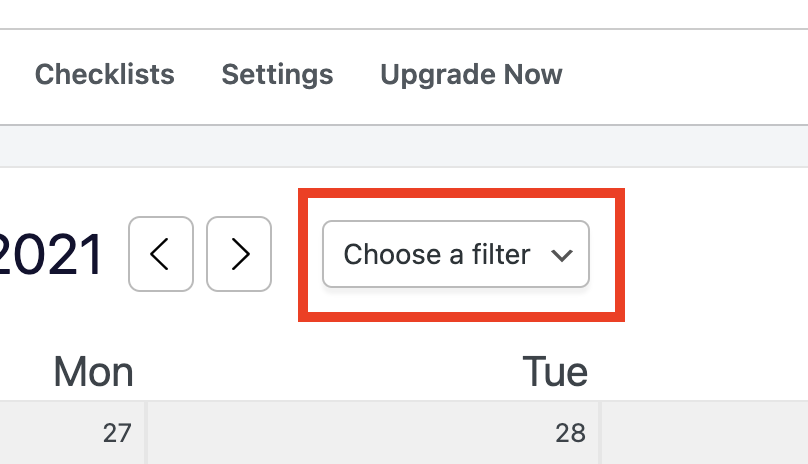
To filter the posts in the calendar, start by clicking the Choose a filter dropdown.
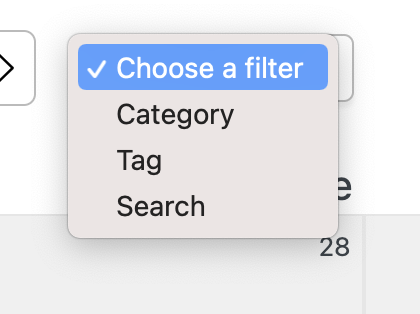
Next, choose to filter the posts by category, tag, or search term.
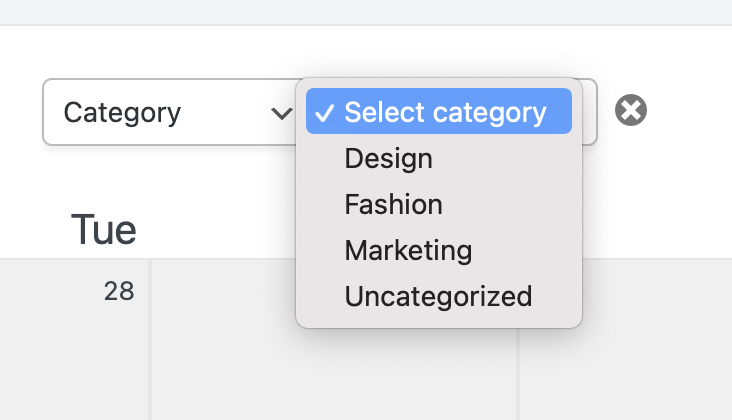
If you choose to filter posts by category, you’ll see another dropdown where you can select a category to filter the posts by.
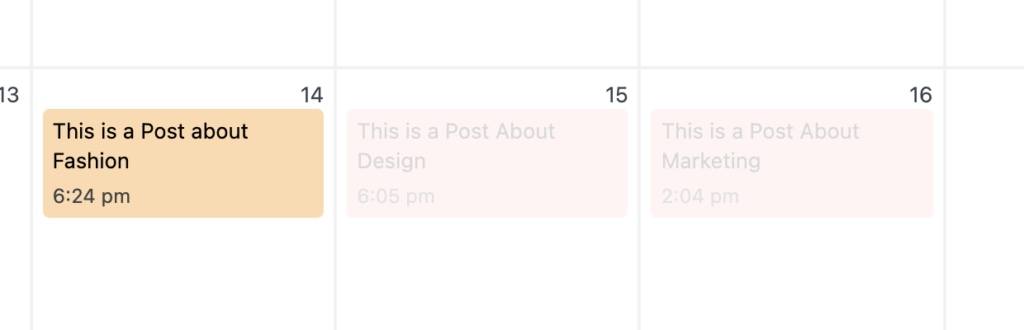
Once you select a category, all posts with that category will stay visible, while all other posts will be made faint in the calendar.
The tag filter works the same way.
To filter with search, type your search term into the input, and all posts that contain the term in the post title will remain visible.
If you’d like to clear the current filter, click the “X” button to the right of the filter options.
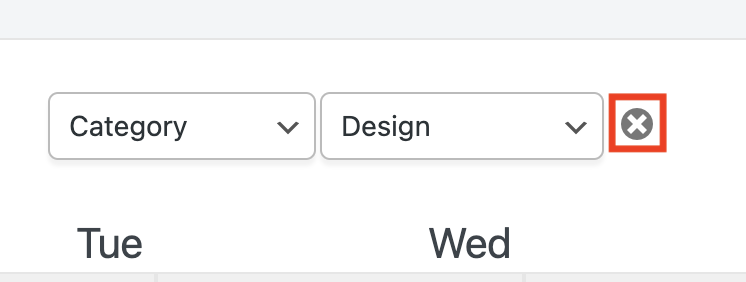
The filter will be removed immediately and all posts will return to normal visibility in the calendar.
Search
Search for
Categories
Related Tutorials
- Getting Started with the Content Calendar
- How to Add New Posts to the Calendar
- How to Reschedule Posts
- How to Edit Posts in the Calendar
- How to Unschedule a Post
- How to Display Post Categories in the Calendar
- How to Display Post Tags in the Calendar
- How to Prevent Incomplete Posts From Publishing
- How to Change the Starting Day of the Week
- How to Change the Number of Weeks in the Calendar
- How to Enable Color Blind Mode
- How to Translate Strive
- How to Keep the Unscheduled Drafts Sidebar Open