
Sometimes, you’ll schedule a post and then decide you won’t be ready to publish it for a while.
When that happens, rescheduling won’t do. Instead, you can unschedule the post completely turning it back into a regular draft.
There are two ways to unschedule a post.
1. Unschedule with the sidebar
Click the “Show Unscheduled Drafts” button at the top right of the calendar to open the sidebar.
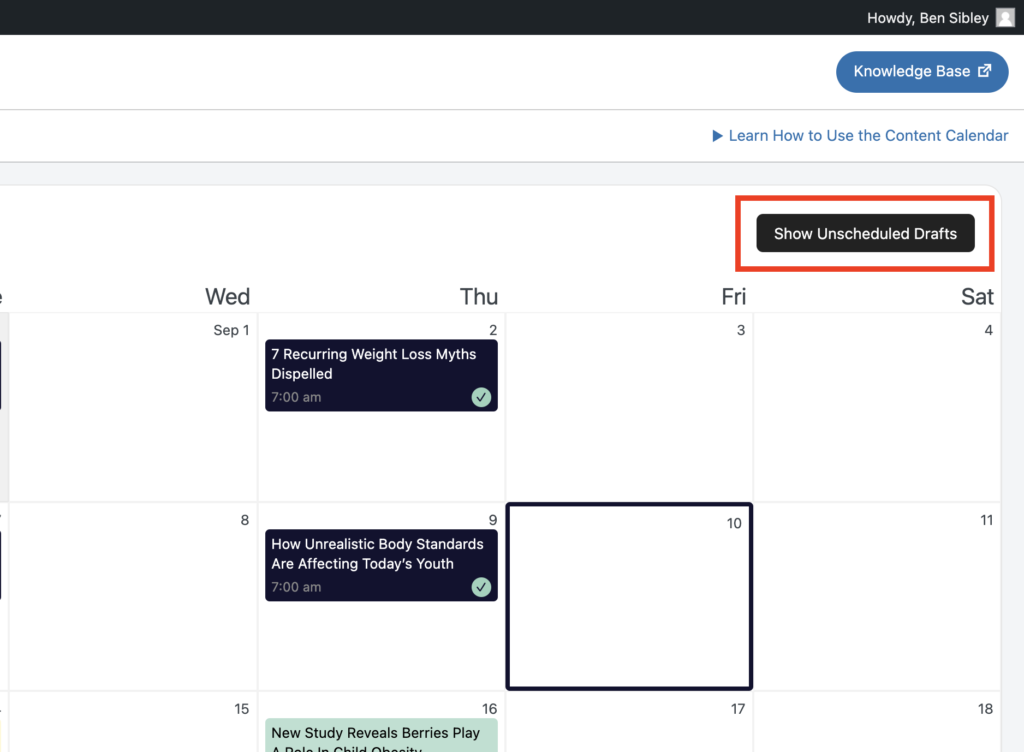
Inside, you’ll see every draft on your site that hasn’t been scheduled yet.
To unschedule one of the posts in the calendar, simply drag and drop it from the calendar into the sidebar
https://competethemes.wistia.com/medias/27j4jkh9xk?embedType=async&videoFoam=true&videoWidth=640
The sidebar will flash green to let you know the change has been saved, and the post will be unscheduled.
At this point, the post is exactly the same in all ways, except it no longer has a scheduled date.
2. Unschedule a post in the editor
While it’s easy to unschedule posts from the calendar, the WordPress editor also has a built-in method for unscheduling posts.
Inside the editor, locate the blue text that reads, “Switch to draft.” It appears to the left of the “Schedule” button.
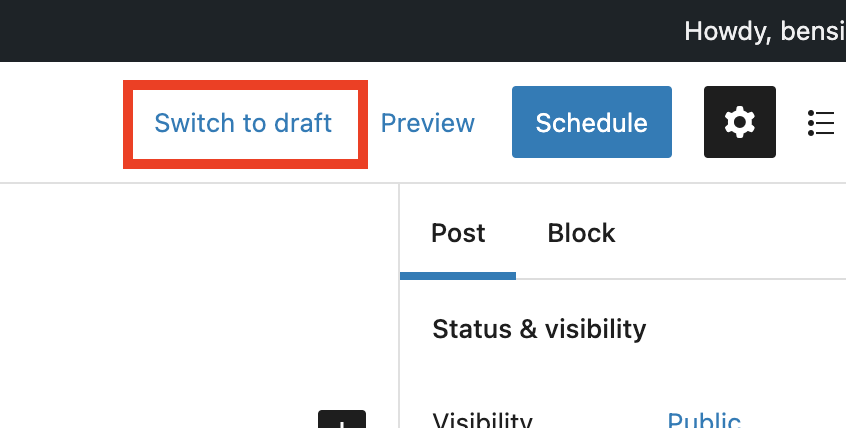
Click that button and WordPress will ask you to confirm unscheduling your post.
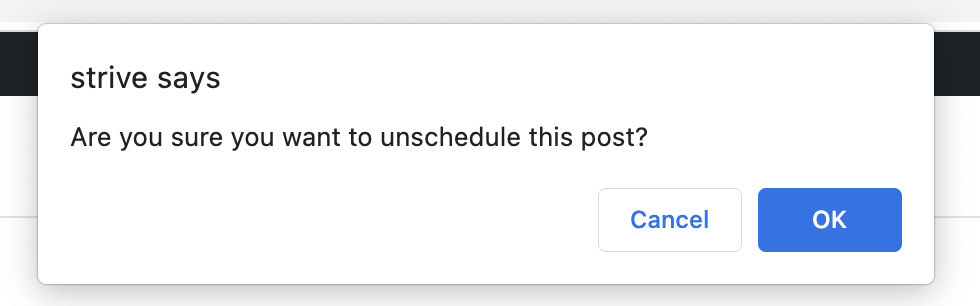
Click “OK” and the post will be unscheduled.
The unscheduled post is now an ordinary draft and will no longer appear in the content calendar.
Unschedule a post with the Classic Editor
If you’re using the Classic Editor, the steps are slightly different.
Inside the editor, click the blue “Edit” link next to the “Scheduled” post status.
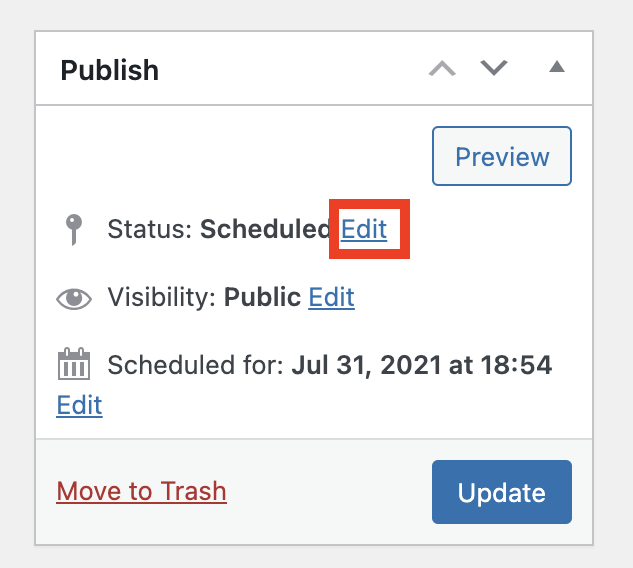
This will reveal a dropdown menu with the available statuses. Click the dropdown and select “Draft” from the list.
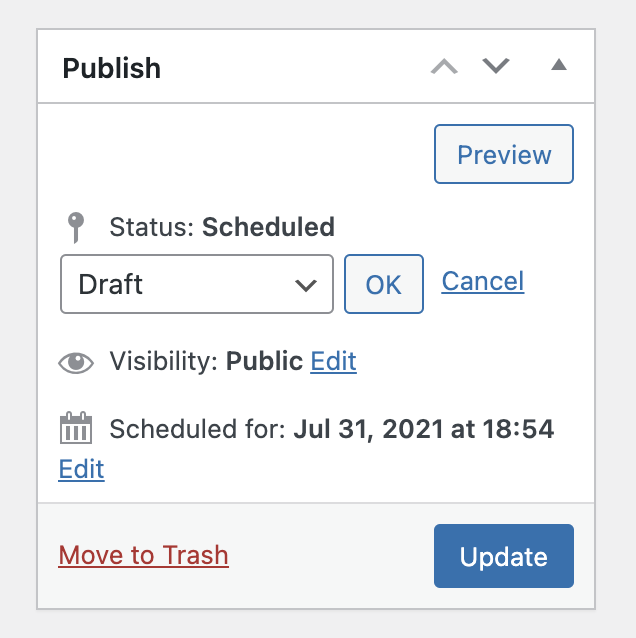
Once “Draft” is selected, click the “OK” button. Then click the blue “Update” button to save your changes and unschedule the post.
Any posts that you unschedule can be scheduled again at any point in the future.
Search
Search for
Categories
Related Tutorials
- Getting Started with the Content Calendar
- How to Add New Posts to the Calendar
- How to Reschedule Posts
- How to Edit Posts in the Calendar
- How to Display Post Categories in the Calendar
- How to Display Post Tags in the Calendar
- How to Filter Posts in the Calendar
- How to Prevent Incomplete Posts From Publishing
- How to Change the Starting Day of the Week
- How to Change the Number of Weeks in the Calendar
- How to Enable Color Blind Mode
- How to Translate Strive
- How to Keep the Unscheduled Drafts Sidebar Open