
No content marketing plan goes exactly as planned.
You’re certain to have posts that need rescheduling every month, and that’s why Strive’s made it easy with drag and drop.
There are three different methods you can use to reschedule your posts.
1. Reschedule with drag and drop
The simplest way to reschedule your posts is to use the drag and drop feature.
Click and hold on the scheduled post, then drag your cursor to the date you want to reschedule the post to. Once you release, the post will be saved on the new day and automatically rescheduled in WordPress.
https://competethemes.wistia.com/medias/w2eswvml3a?embedType=async&videoFoam=true&videoWidth=640
2. Use the Quick Edit menu
Another way to reschedule a post is to use the Quick Edit menu.
Click anywhere on a post to open the Quick Edit menu. Then click on the date to open the calendar date picker.
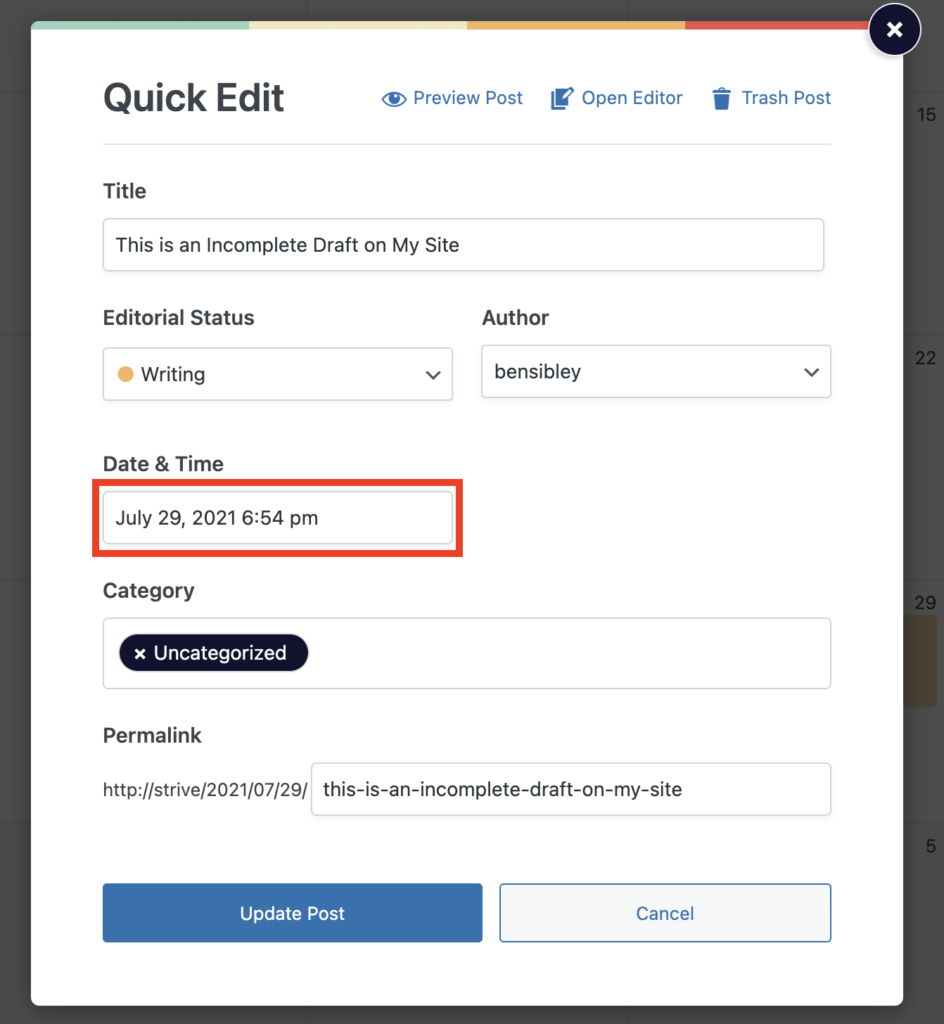
In the calendar, click the new day you want the post to be published on and then click the Apply button.
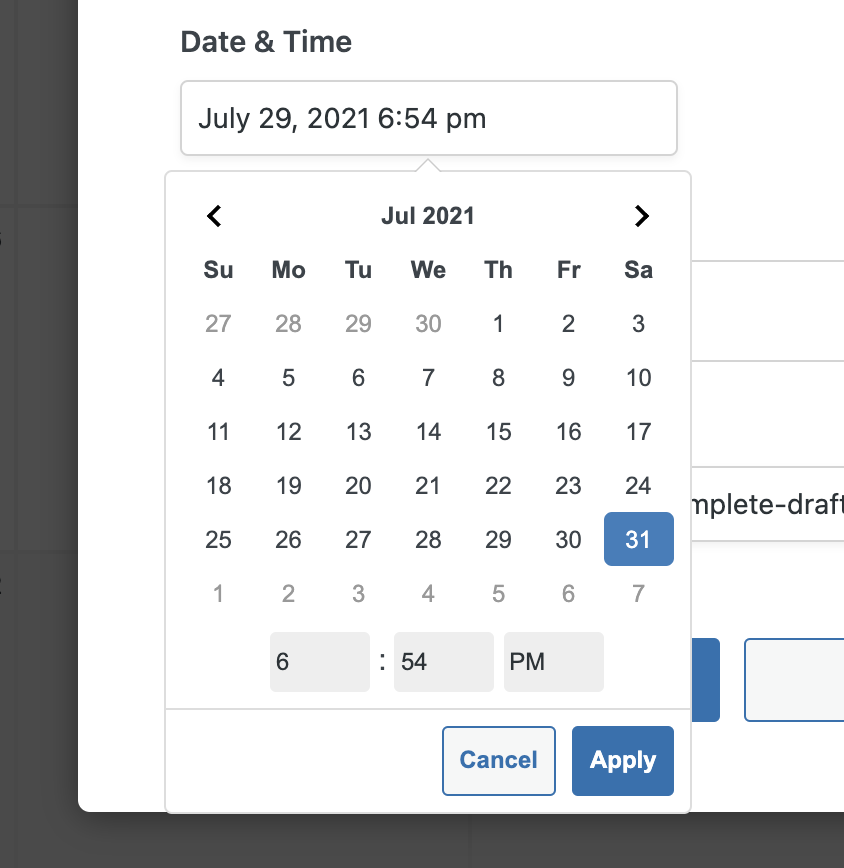
If you’d like to change the time of day the post will be published, use the time inputs below the calendar.
Once you’ve selected a new date, click the Update Post button in the Quick Edit menu.
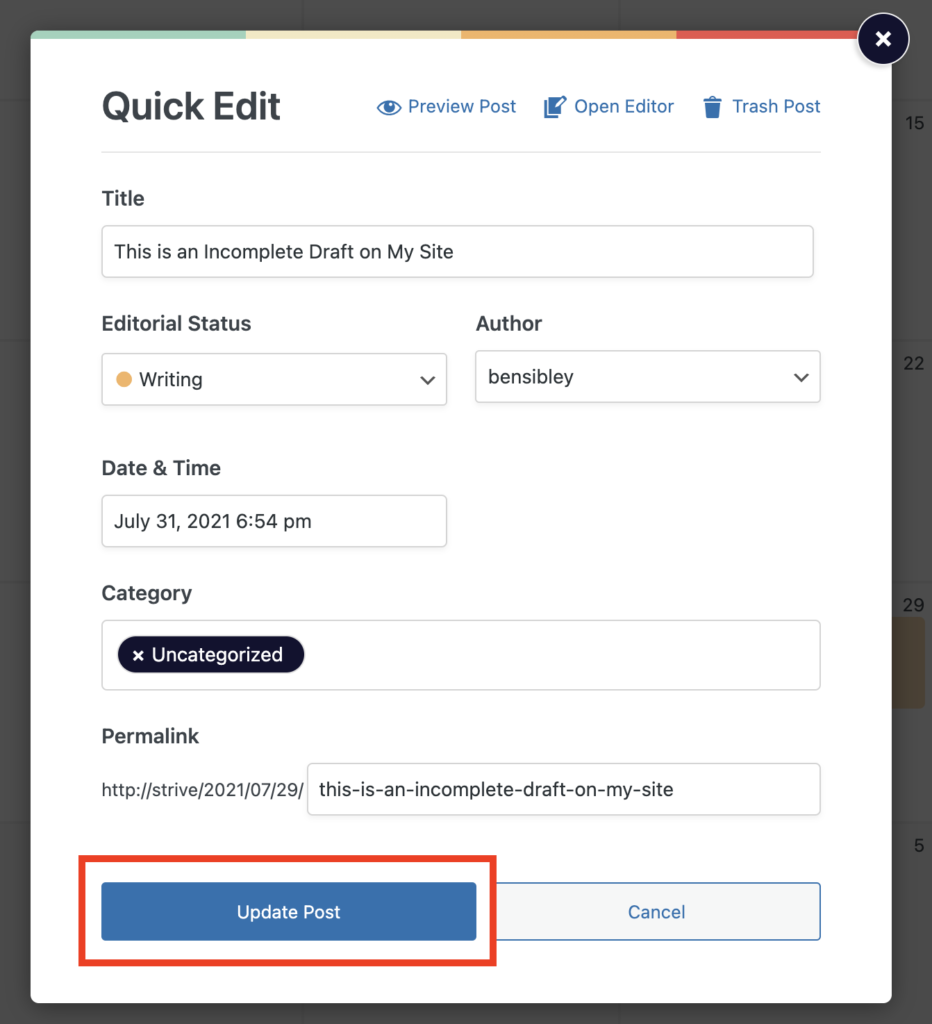
The post will move immediately into its new scheduled date.
3. Reschedule from the editor
Since Strive’s calendar is synced with WordPress, you can also reschedule your posts normally via the editor.
Click on the scheduled date in the Status & visibility sidebar section.
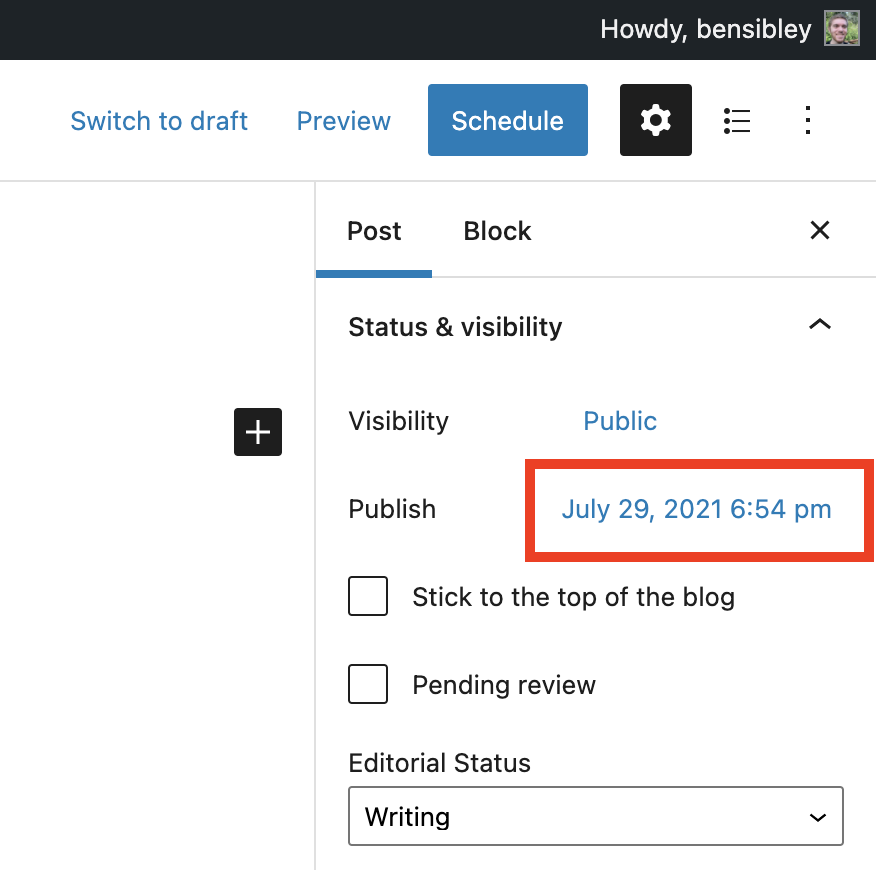
This will open up the calendar date picker. In the calendar, click on the new day you want to publish the post on.
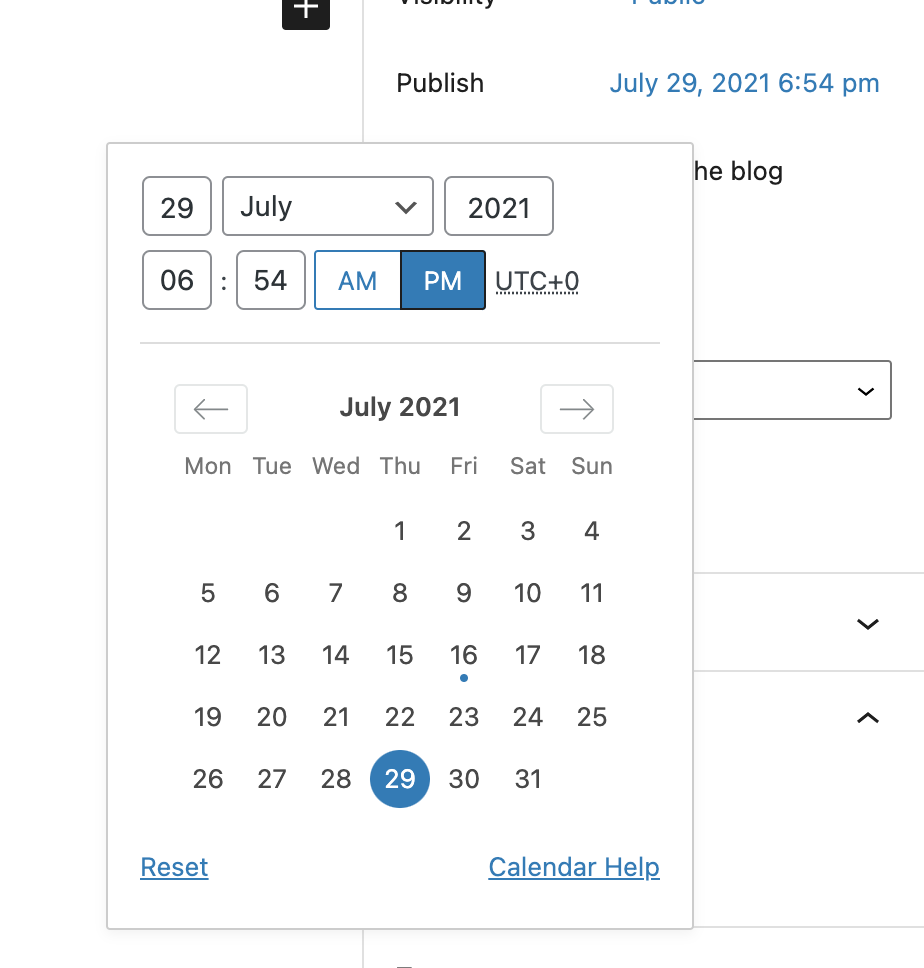
Click anywhere outside the calendar to close it and set the new date. Lastly, click the “Schedule” button to save your changes and schedule the post on the new day.
After saving, the post’s new publication date will be reflected in Strive’s content calendar as well.
Search
Search for
Categories
Related Tutorials
- Getting Started with the Content Calendar
- How to Add New Posts to the Calendar
- How to Edit Posts in the Calendar
- How to Unschedule a Post
- How to Display Post Categories in the Calendar
- How to Display Post Tags in the Calendar
- How to Filter Posts in the Calendar
- How to Prevent Incomplete Posts From Publishing
- How to Change the Starting Day of the Week
- How to Change the Number of Weeks in the Calendar
- How to Enable Color Blind Mode
- How to Translate Strive
- How to Keep the Unscheduled Drafts Sidebar Open